User Guide
AcademySource is a streamlined contact management desktop app built for use via command-line interface (CLI), designed to help students stay connected with their academic network. It centralizes key contact details of professors and teaching assistants, removing the need to dig through emails or portals. With its simple and efficient CLI-based design, AcademySource lets you manage academic contacts quickly and effortlessly—so you can stay organized and focused on your learning journey.
With AcademySource, you can:
- Store and manage contact information of professors and TAs (e.g., email, phone number, role, module).
- Search for contacts by name, contact details, role, and/or module code.
- Mark important contacts as favorites for quick access.
Table of Contents
- Quick start
- Graphic User Interface Layout
- Keybinds
-
Features
- Prefix table
- Modules Accepted by AcademySource
- Viewing help
- Listing all persons
- Adding a person
- Editing a person
- Locating persons by name, phone, module and favourite
- Mark / un-mark a person as favourite
- Deleting a person
- Clearing all entries
- Exiting AcademySource
- Saving the data
- Editing the data file
- FAQ
- Known issues
- Command summary
- Glossary
Quick start
- Ensure that you have
Java 17or above installed on your computer. Follow the steps below to check if you already haveJava 17installed:- Navigate to your operating system’s terminal by following these steps:
For Windows:
- Hold down Windows button and R (⊞ Win + R)
- Type
cmdand press theEnterkey
For MacOS:
- Click the Launchpad icon in the Dock, type
Terminalin the search field, then click Terminal, OR - In the Finder, open the
/Applications/Utilitiesfolder, then double-click Terminal.
- Type
java -versionand press theEnterkey. - If
Java 17is installed, your terminal will look like this:On Windows:
 C:\Users\UserName>java -version
 java version "17.0.12" 2024-07-16 LTS
 Java(TM) SE Runtime Environment (build 17.0.12+8-LTS-286)
 Java HotSpot(TM) 64-Bit Server VM (build 17.0.12+8-LTS-286, mixed mode, sharing)
On MacOS:
user@username-MacBook-Air-3 ~ % java -version
openjdk version "17.0.11" 2024-04-16 LTS
OpenJDK Runtime Environment Zulu17.50+19-CA (build 17.0.11+9-LTS)
OpenJDK 64-Bit Server VM Zulu17.50+19-CA (build 17.0.11+9-LTS, mixed mode, sharing)
- Navigate to your operating system’s terminal by following these steps:
- If you have
Java 17installed, proceed to Step 3. If not, follow these instructions: - Download the latest version of AcademySource from here. Select
academysource.jarto begin the download. - Copy the file to the folder you want to use as the home folder for AcademySource. Note: This will create additional files required for AcademySource in your home folder.
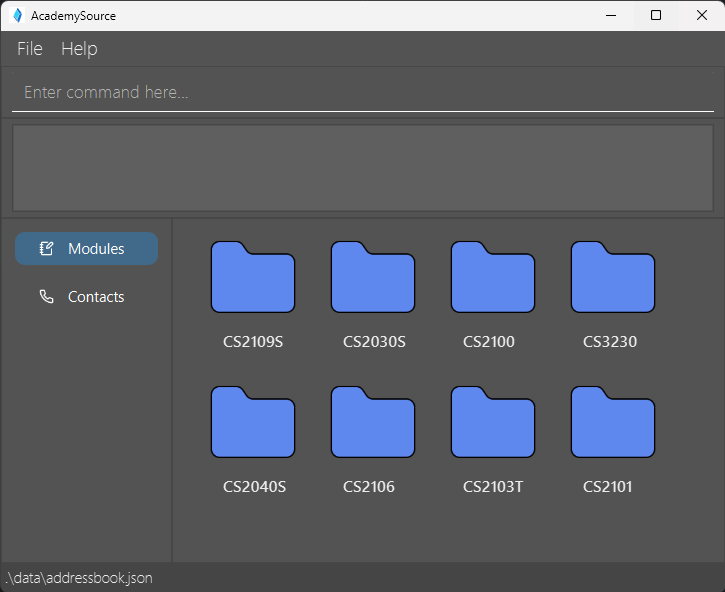
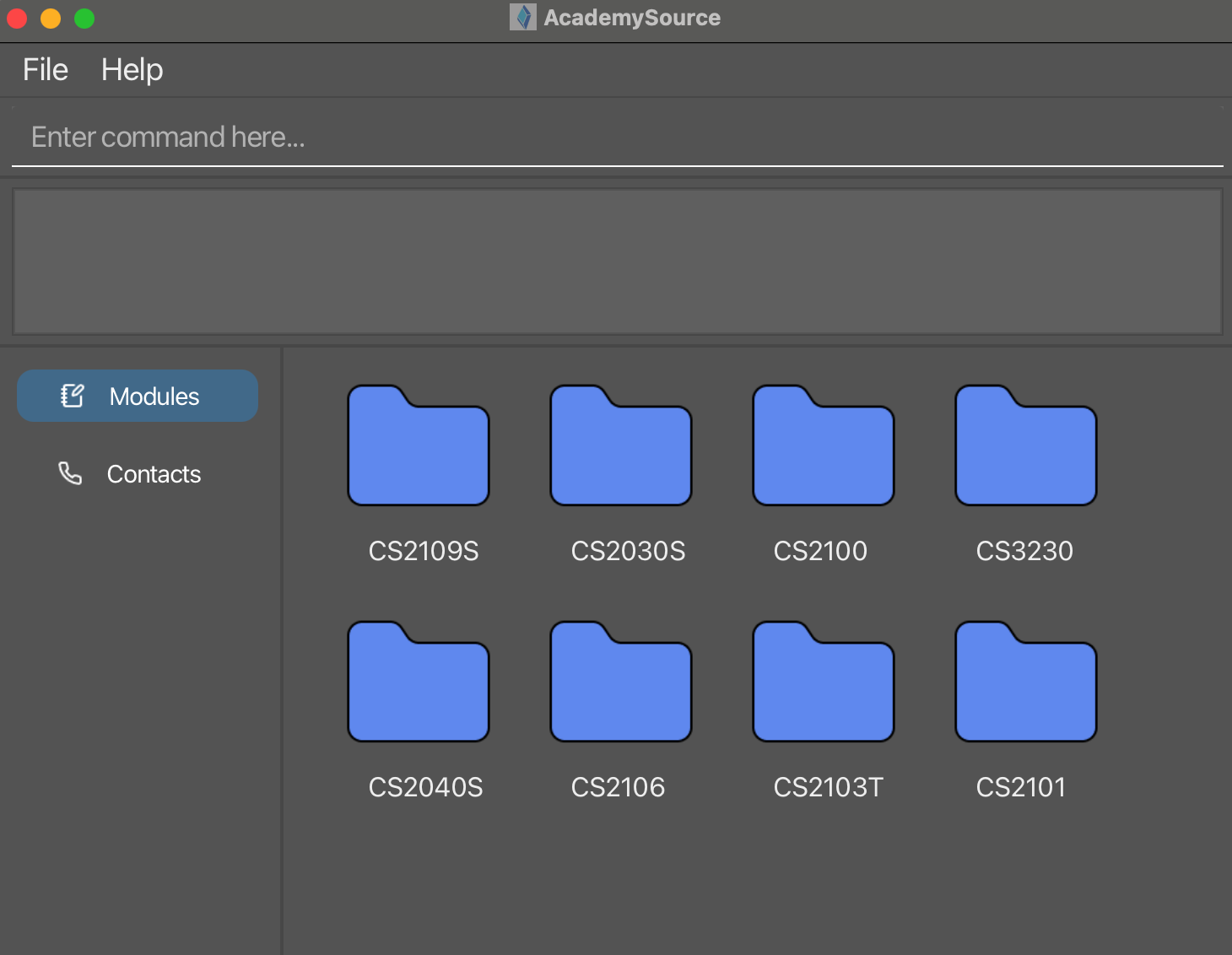
- Open AcademySource by double-clicking the program file,
academysource.jar. Alternatively, you may typejava -jar academysource.jarinto your terminal and press theEnterkey.
What you’ll see:On Windows:
On Mac OS:
-
Type a command in the command box and press the
Enterkey to execute it. For example, typinghelpand pressing theEnterkey will open the help window.
Some example commands you can try:-
list: Lists all contacts. -
add n/John Doe p/98765432 e/johnd@example.com r/TA m/CS2103T: Adds a contact named John Doe to AcademySource with the phone number 98765432, email address johnd@example.com, role of TA and module CS2103T. -
delete 3: Deletes the 3rd contact shown in the current list. -
clear: Deletes all contacts. -
exit: Exits the app.
-
- Refer to the Features section below for details of each command.
 Notes about the command box:
The command box remembers up to 16 previous commands. You can use the Up Arrow (↑) key on your keyboard to scroll back through them and the Down Arrow (↓) key to move forward. This saves time by letting you reuse commands without retyping them.
If you edit a recalled command, the navigation resets, and you can’t scroll forward anymore. Once you press the Enter key, the modified command is saved as a new history entry.
Example:
-
Type
find mm/2040and press theEnterkey. -
Type
listand press theEnterkey. -
Press the Up Arrow
(↑)key once and you will seelistin the command box. -
Press the Up Arrow
(↑)key again and you will seefind mm/2040in the command box. -
Now, if you change
find mm/2040tofind mm/2103and then press the Down Arrow(↓), you will notice that you aren’t moving forward through history because you modified the command. However, you can still press the Up Arrow(↑)to accesslistandfind mm/2040again.
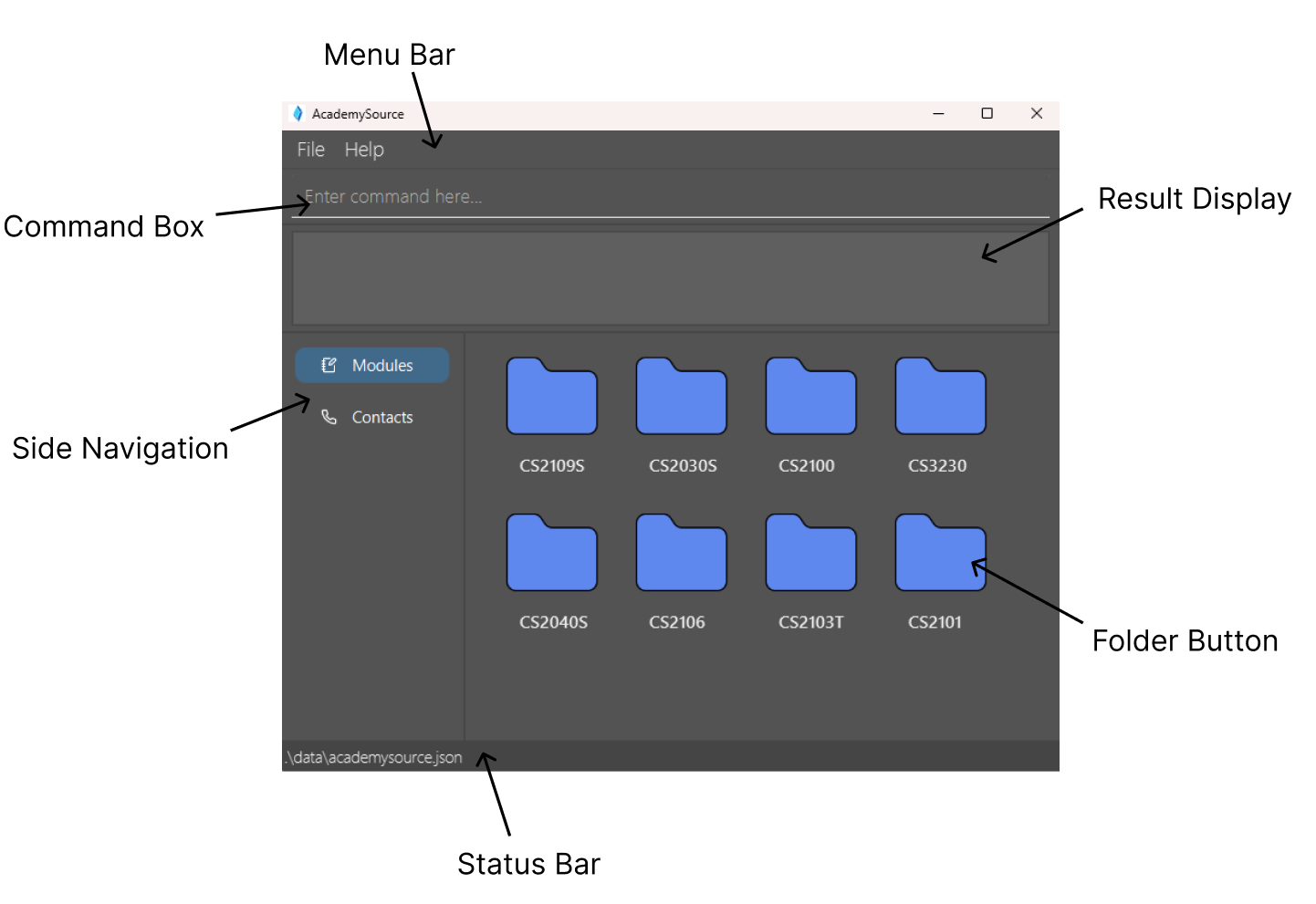
Graphic User Interface Layout 🔝
Basic features:
- Menu Bar: A top menu bar that provides access to various functions within AcademySource.
- Command Box: An input with a placeholder “Enter Command Here…” to enter commands into.
- Result Display: A rectangular display box to display success message upon successful command execution, or error message upon failure.
- Side Navigation: Buttons to navigate between the Modules and Contacts tab. Press their buttons or the
Tabkey to navigate between the two tabs.
 Caution:
Switching to Contacts tab by pressing tab or pressing on
Caution:
Switching to Contacts tab by pressing tab or pressing on Contacts button will clear all filters on the list.
Modules Page:
- Module Folder: A folder that stores contacts of a module code. Clicking a module folder will direct you to a page displaying contacts of that module code.
Caution:
Commands can still be entered and work on the modules page, but the contact list is not visible. Thus, avoid entering commands that modify data (such as edit, delete) on the module page to prevent inadvertent actions.
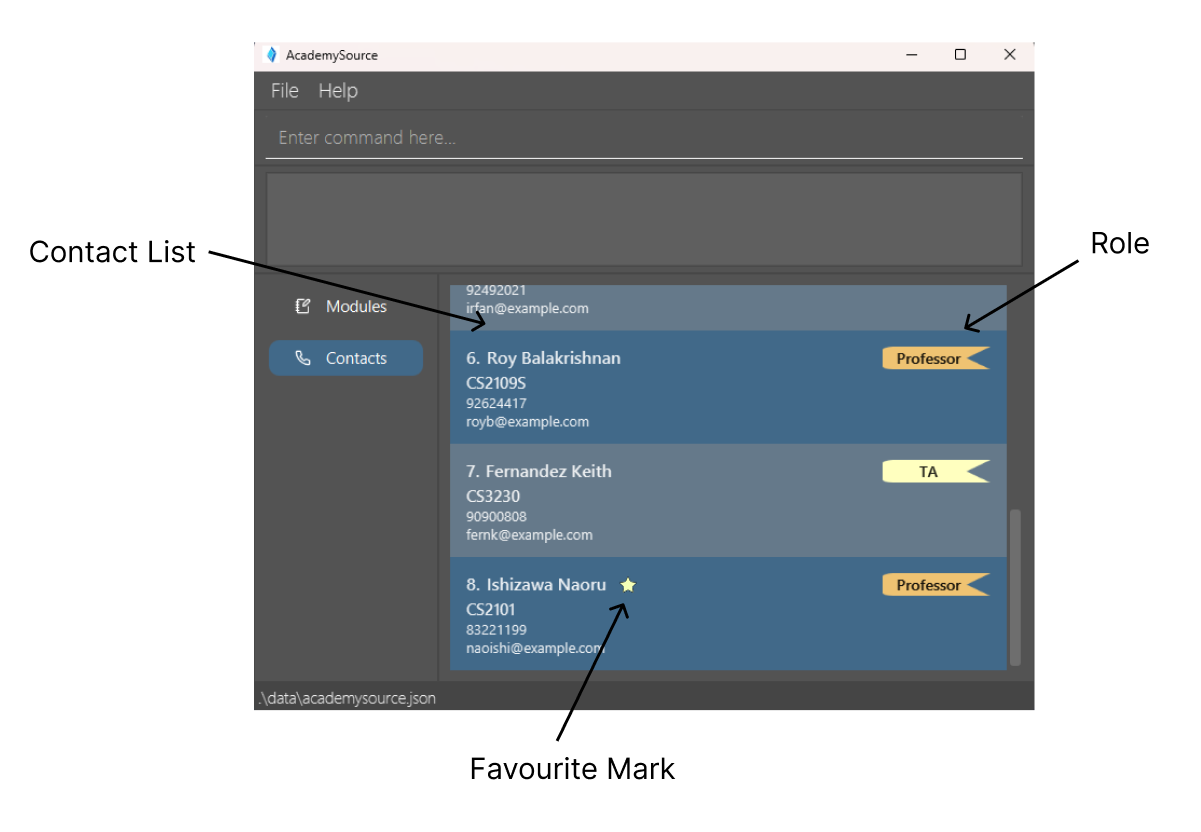
Contacts Page:
- Contact List: A list of contacts stored inside AcademySource. Each row stores a contact name card with their relevant details.
- Role: The role in which each contact is assigned to.
TAwill be displayed as yellow bookmark whileProfessorwill be displayed as orange bookmark. - Favourite Mark: A star symbol indicating contacts marked as favourite by you.
Keybinds 🔝
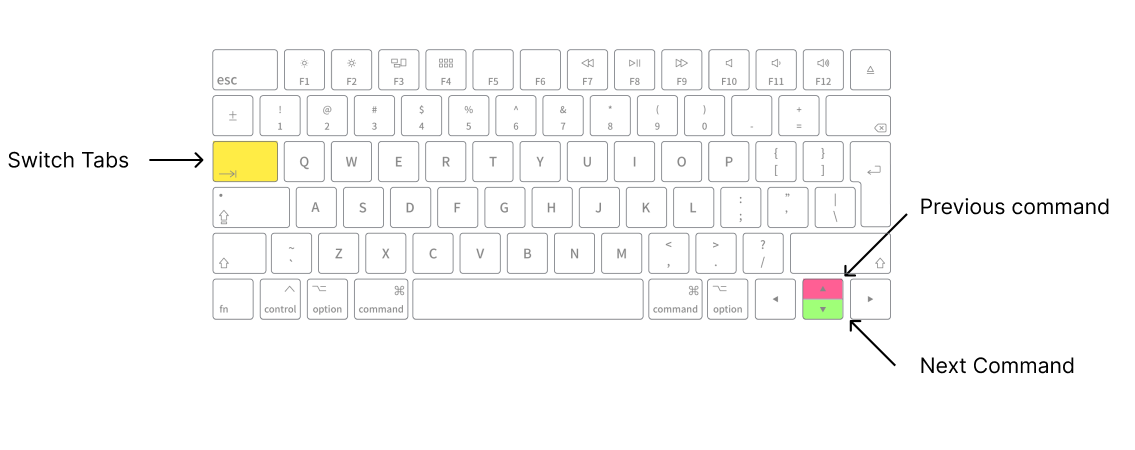
-
Tab: Toggles between window between Modules and Contacts tab. - Up Arrow
(↑): Goes back to previous command in history. - Down Arrow
(↓): Goes forward to next command in history.
Notes regarding Tab key function:
The Tab key will not switch windows between Modules and Contacts if one of the Menu dropdowns (File/Help)
or Help window is open.
Features 🔝
Caution:
AcademySource works best with standard English characters. Using characters from other languages (e.g., Arabic, Chinese, or Hebrew) or emojis may cause display and input issues. To keep things running smoothly, please stick to English characters.
Notes about the command format:
-
Command words are case-sensitive.
e.g.,listworks, but notListorLIST. -
Prefixes are also case-sensitive.
e.g.,N/instead ofn/will not be allowed. -
Words in
UPPER_CASEare parameters to be supplied by the user.
e.g., inadd n/NAME,NAMEis a parameter which can be used asadd n/John Doe. -
Fields in square brackets are optional.
e.g.,n/NAME [t/TELEGRAM]can be used asn/John Doe t/@johndoeor asn/John Doe. -
Fields with
… after them can be used more than once.
e.g.,m/MODULE…can be used asm/CS2103T,m/CS2103T m/CS2040Setc. -
Parameters can be typed in any order.
e.g., Bothn/NAME p/PHONE_NUMBERandp/PHONE_NUMBER n/NAMEare acceptable. -
Extraneous parameters for commands that do not take in parameters (e.g.,
help,list,exitandclear) will be ignored.
e.g., if the command specifieshelp 123, it will be interpreted ashelp. -
If you are using a PDF version of this document, be careful when copying and pasting commands that span multiple lines as space characters surrounding line-breaks may be omitted when copied over to the application.
Prefix Table 🔝
| Prefix | Meaning | Usage Example | Keyword(s) Rules |
|---|---|---|---|
n/ |
Name | n/John Doe |
add, edit, and find: Name must only contain alphanumeric characters and spaces. NOTE: When using add or edit, duplicate names will not be allowed.
|
p/ |
Phone number |
p/98765432p/+91234567
|
add & edit: Phone can optionally start with a +, followed by 3-17 digits. find: Phone can optionally start with a +, followed by 1-17 digits. |
t/ |
Telegram | t/@johndoe |
add & edit: Telegram must begin with @ and have 5–32 characters (excluding starting @). The first character after ‘@’ must be an alphabet; only alphanumerics and underscores are allowed in the remaining handle, and the handle after ‘@’ cannot start or end with special characters. find: Must only contain alphanumerics, underscores, or @. NOTE: When using add or edit, duplicate telegram handles will not be allowed.
|
r/ |
Role (ta or prof) |
r/TA or r/PROF
|
add & find: Role must either be one of two roles, TA or PROF, case-insensitive. NOTE: Not used in edit.
|
e/ |
Email address | e/johnd@example.com |
add & edit: Email must follow local-part@domain. The local-part may only contain alphanumerics and the allowed special characters (+_.-) without starting or ending with them. The domain consists of domain labels separated by periods, each starting and ending with alphanumerics (separated only by hyphens, if any), and the end domain label must be at least 2 characters long. find: No restriction. |
m/ |
Module (can have multiple) |
m/CS2101 m/CS2103T m/CS2101
|
add & edit. Module must be a valid module code, case-insensitive. NOTE: Not used in find. See Accepted Modules for a list of valid module codes. |
f/ |
Favourite |
f/y or f/n
|
find: Favourite must be either one y or n. NOTE: Not used in add and edit.
|
mm/ |
Module(s) |
mm/CS2103T or mm/CS2101 CS2103T
|
find: Module(s) must only contain alphanumerics. NOTE: Not used in add and edit.
|
Note: Each prefix must be followed by at least one non-empty keyword. Empty keywords are not allowed for any of the prefixes.
Click here for find function prefix matching details
Modules Accepted by AcademySource 🔝
| Module Code | Module Name |
|---|---|
| CS1231S | Discrete Structures |
| CS2030S | Programming Methodology II |
| CS2040S | Data Structures and Algorithms |
| CS2100 | Computer Organisation |
| CS2103T | Software Engineering |
| CS2106 | Introduction to Operating Systems |
| CS2109S | Introduction to AI and Machine Learning |
| CS3230 | Design and Analysis of Algorithms |
| CS2101 | Effective Communication for Computing Professionals |
Viewing help : help 🔝
Shows a message with a URL to the help page.

Format: help
Listing all persons : list 🔝
Shows a list of all contacts in AcademySource.
Before command:
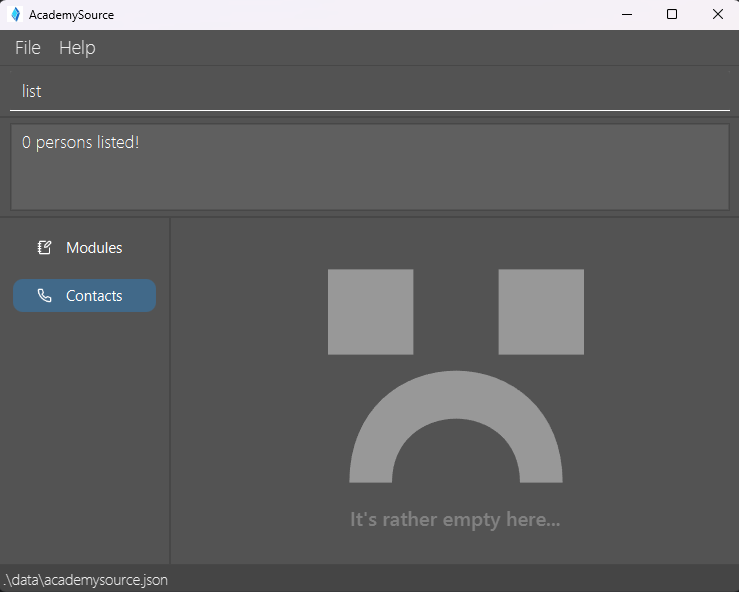
After command:
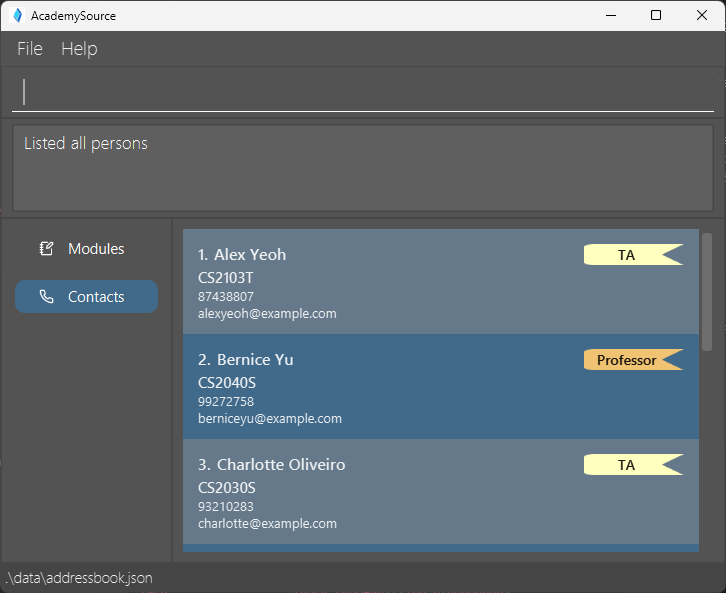
Format: list
Adding a person: add 🔝
Adds a contact to AcademySource.
Before command:
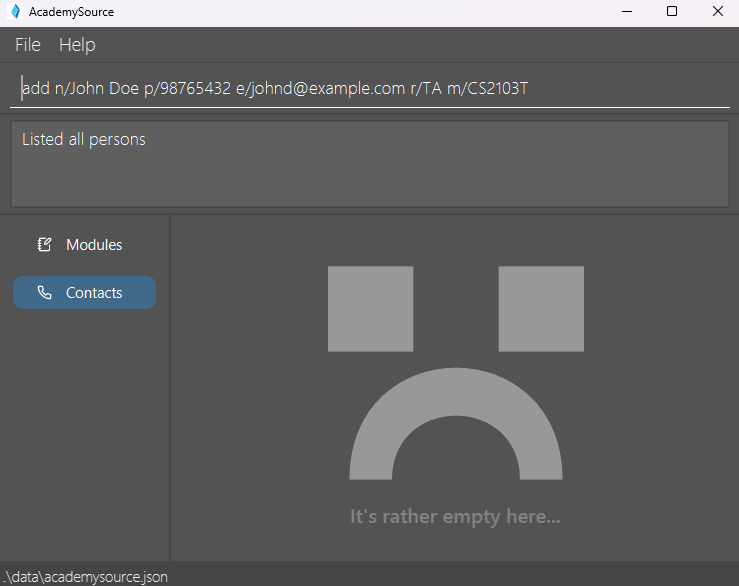
After command:
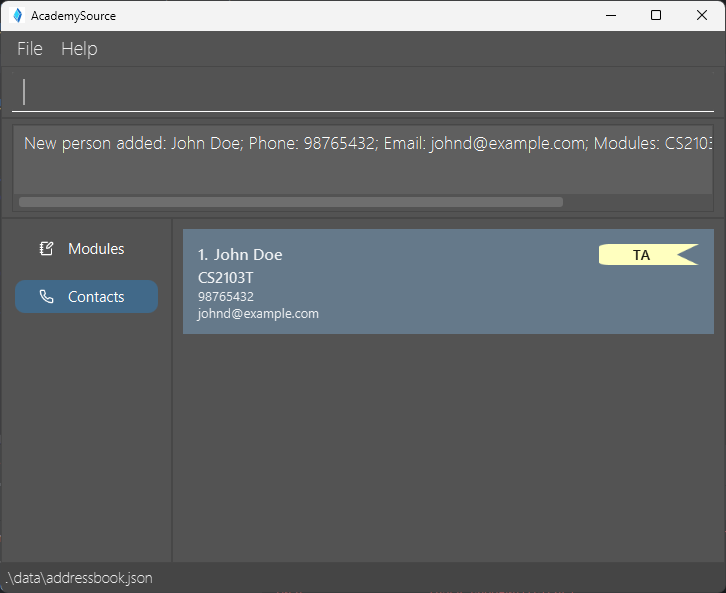
Format: add n/NAME p/PHONE_NUMBER e/EMAIL r/ROLE [t/TELEGRAM] [m/MODULE] [m/MORE_MODULES]…
 Tip:
A person can have any number of modules (including 0)
Tip:
A person can have any number of modules (including 0)
-
ROLEmust be eithertaorprof(Case-insensitive, which meansTAorProfare also valid). -
MODULEmust be one of the accepted module codes given in the module table.
Examples:
add n/John Doe p/98765432 e/johnd@example.com r/prof m/CS2103Tadd n/Betsy Crowe e/betsycrowe@example.com p/1234567 r/TA m/CS2103T t/@johnd
Editing a person : edit 🔝
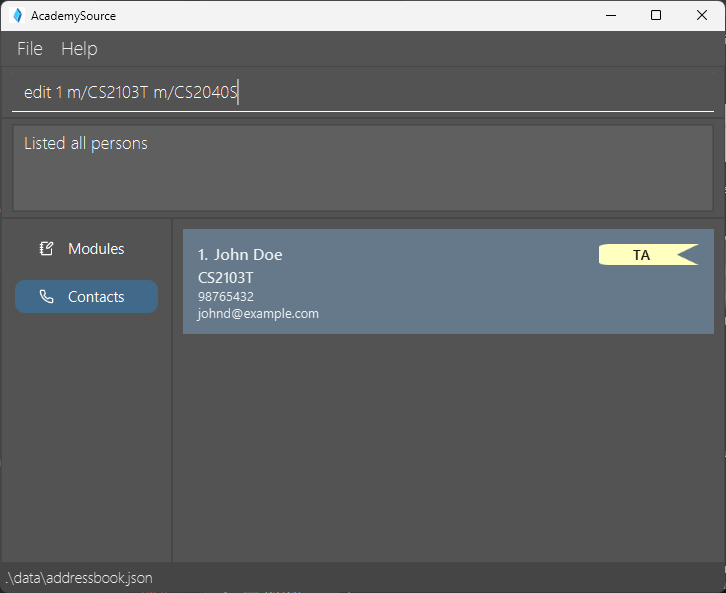
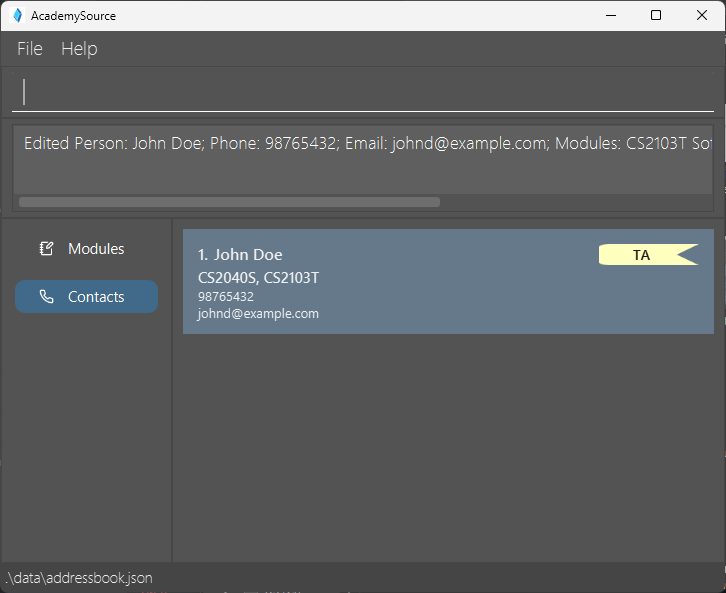
Edits an existing contact in AcademySource.
Before command:
After command:
Format: edit INDEX [n/NAME] [p/PHONE] [e/EMAIL] [t/TELEGRAM] [m/MODULE] [m/MORE_MODULES]…
- Edits the person at the specified
INDEX. The index refers to the index number shown in the displayed person list. The index must be a positive integer 1, 2, 3, … - At least one of the optional fields must be provided.
- Existing values will be updated to the input values.
- Roles can not be edited.
- When editing modules, the existing modules of the person will be removed i.e adding of modules is not cumulative.
-
MODULEmust be one of the accepted module codes given in the module table.
Examples:
-
edit 1 p/91234567 e/johndoe@example.comEdits the phone number and email address of the 1st person to be91234567andjohndoe@example.comrespectively. -
edit 2 n/Betsy Crower m/Edits the name of the 2nd person to beBetsy Crowerand clears all existing modules. -
edit 2 m/CS2103T m/CS2106Edits the module of the 2nd person to beCS2103TandCS2106. -
edit 2 t/clears existing telegram for 2nd person.
Locating persons by name, phone, module, and favourites: find 🔝
Finds persons whose names contain any of the given keywords.
Before command:
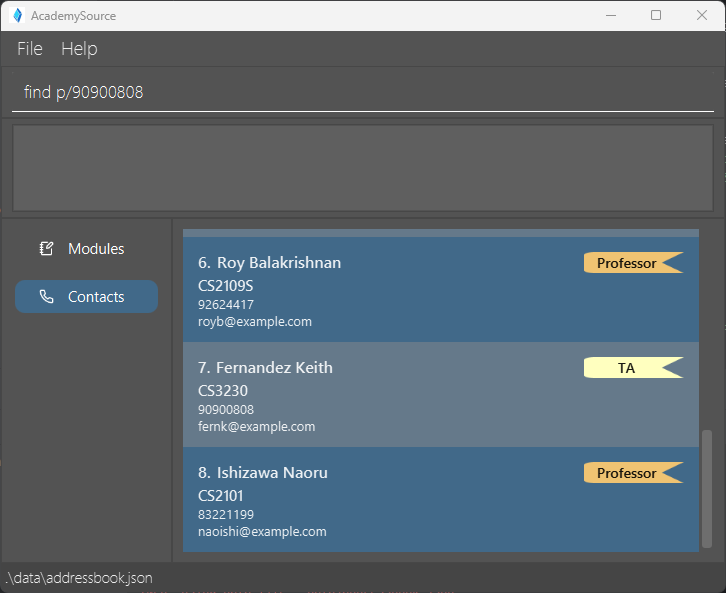
After command:
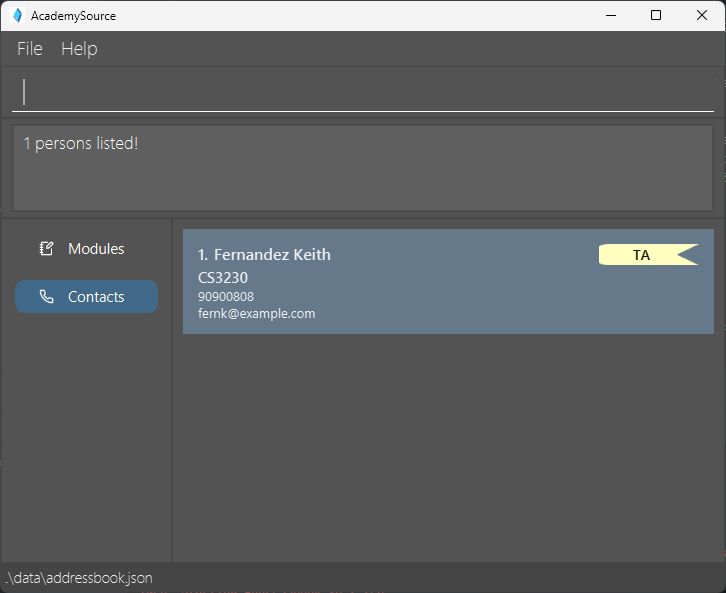
Format: find [n/NAME_KEYWORDS] [p/PHONE_KEYWORDS] [mm/MODULE_KEYWORDS] [f/FAVOURITE_STATUS] [r/ROLE] [t/TELEGRAM_KEYWORDS] [e/EMAIL_KEYWORDS]
-
n/— Supports case-insensitive and partial name matches. -
p/— Supports partial phone number matches. -
mm/— Supports case-insensitive and partial module code matches. -
f/— Supports case-insensitive favourite status matches. -
r/— Supports case-insensitive role matches. -
t/— Supports case-insensitive and partial Telegram handle matches. -
e/— Supports case-insensitive and partial email matches.
🔎 Search Behavior
-
Case-Insensitive & Partial Matching:
The search for names, phone numbers, and module codes is performed in a case-insensitive manner and supports partial keyword matching.
Example:find n/johnmatches a person named “John Doe”. -
Keyword Order:
For names, the order of keywords does not matter. For example,find n/Hans Bomatches “Bo Hans”. -
Single Instance per Prefix:
Only one instance of each prefix is allowed. Repeating a prefix (e.g.,n/John n/Doe) is not permitted. -
AND Combination:
When multiple prefixes are specified (e.g.,find n/John mm/CS2103T), a person must satisfy all criteria (i.e. the keywords across the different fields are combined using an AND operation) to be included in the results.
✅ Valid Examples
| Command | Description |
|---|---|
find n/John |
Finds persons with names matching John (e.g., “John Doe”). |
find n/alex david |
Finds persons with names matching either alex or david (e.g., “Alex Yeoh”, “David Li”). |
find p/9123 |
Finds persons whose phone numbers contain 9123 (e.g., “91234567”). |
find mm/2103 CS3230 |
Finds persons with module codes that contain “2103” or “CS3230” (e.g. CS2103T, CS2103, CS3230
|
find f/y |
Finds persons marked as favourites. |
find r/prof |
Finds persons with the role of Professor. |
find t/@john_doe |
Finds persons whose Telegram handle matches @john_doe. |
find e/john@gmail.com |
Finds persons whose email matches john@gmail.com
|
find n/John Demar mm/CS2103T |
Finds persons whose name contains “John” or “Demar” and are in the module “CS2103T”. |
find mm/CS2103 f/y |
Finds persons whose module matches CS2103 and who are marked as favourites. |
❌ Invalid Examples
| Command | Reason |
|---|---|
find |
No search prefixes provided. |
find n/John n/Doe |
Duplicate n/ prefix is not allowed. |
find f/maybe |
Invalid value for f/. Only y or n are allowed. |
find r/student |
Invalid value for r/. Only prof or ta are allowed. |
find n/John$ |
Invalid name. Special characters like $ are not permitted. (Names only allow alphabets and spaces)
|
find t/john#doe |
Invalid Telegram handle. Characters like # are not allowed. (Telegram handles only allow alphabets, digits, underscore, or @)
|
Mark / un-mark a person as favourite : fav 🔝
Mark a specific person as favourite, or un-mark a person from favourite if that person is already marked as favourite. A star will be shown beside the person’s name if it is marked as favourite.
Before command:
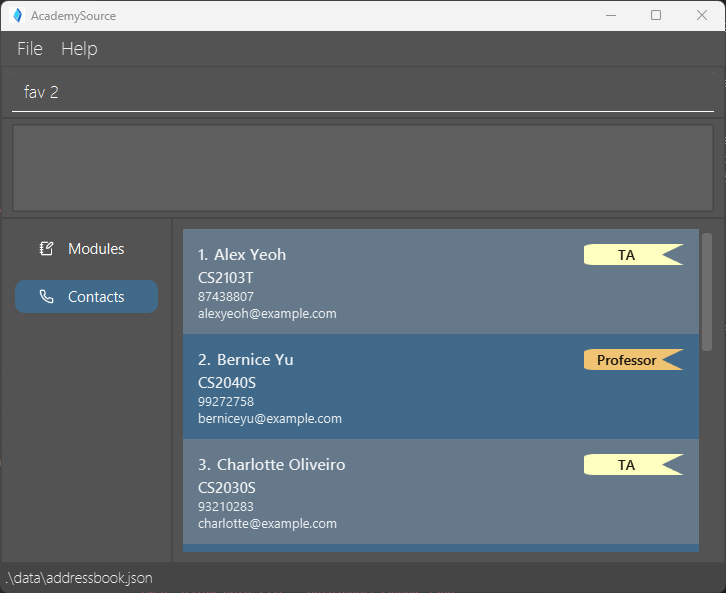
After command:
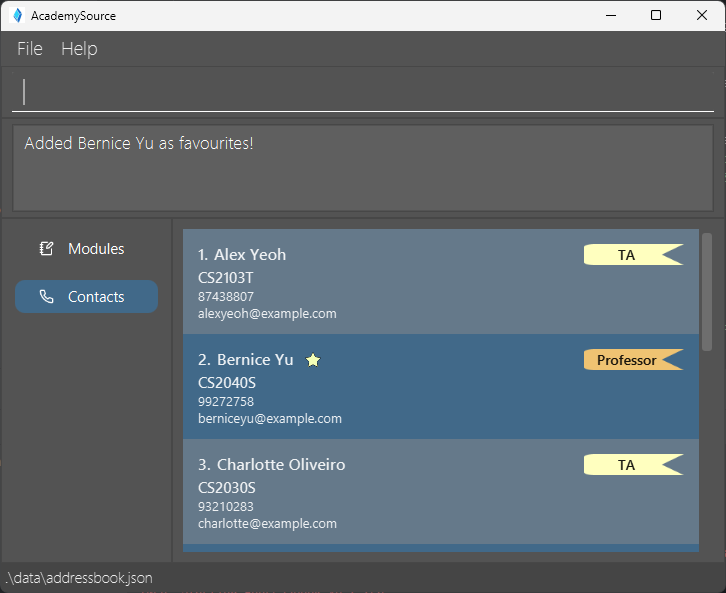
Format: fav INDEX
- Toggles the favourite status of the person at the specified
INDEX. - The index refers to the index number shown in the displayed person list.
- The index must be a positive integer 1, 2, 3, …
Examples:
-
listfollowed byfav 2marks the 2nd contact in AcademySource as favourite. -
fav 2again un-marks the person.
Deleting a person : delete 🔝
Deletes the specified contact from AcademySource.
Before command:
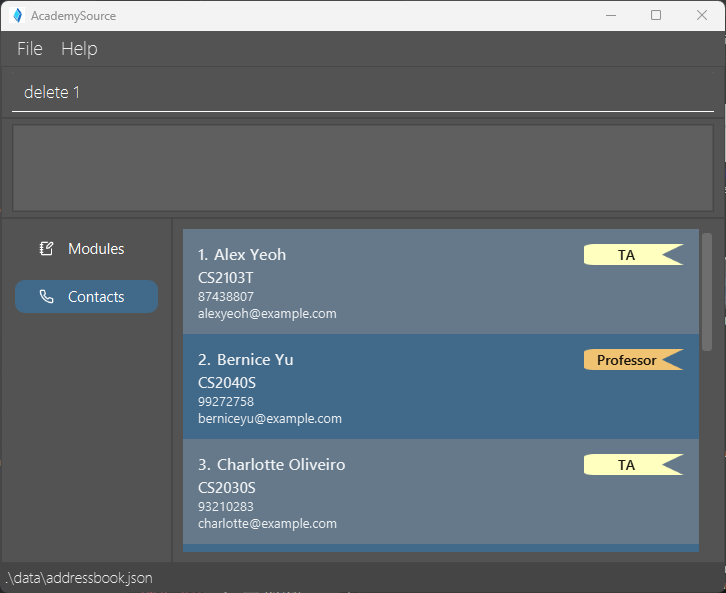
After command:
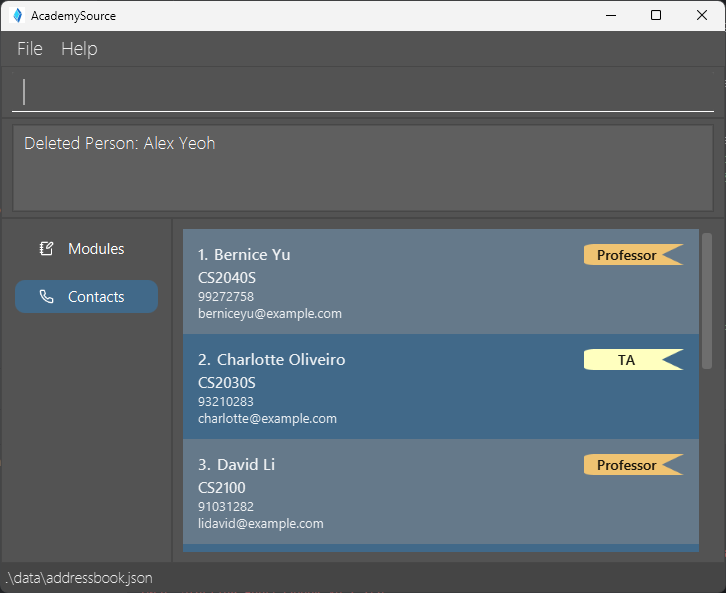
Format: delete INDEX [MORE INDEX]
- Deletes the person at the specified
INDEX. - The index refers to the index number shown in the displayed person list.
- The index must be a positive integer 1, 2, 3, …
- Index should not repeat in the same command.
Examples:
-
listfollowed bydelete 2deletes the 2nd contact from the result of thelistcommand. -
find Betsyfollowed bydelete 1deletes the 1st contact in the results of thefindcommand. -
delete 1 2 3deletes the first 3 contacts, given that all indexes exist within the contact list.
Clearing all entries : clear 🔝
Clears all entries from AcademySource.
Before command:
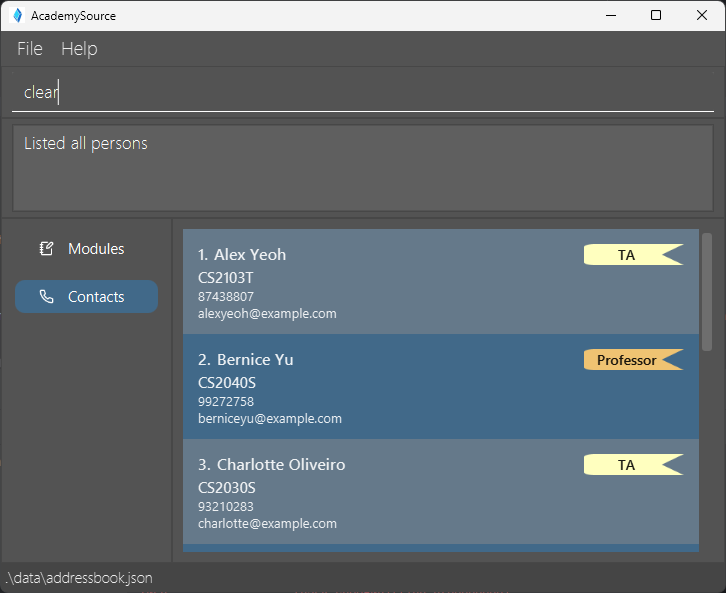
After command:
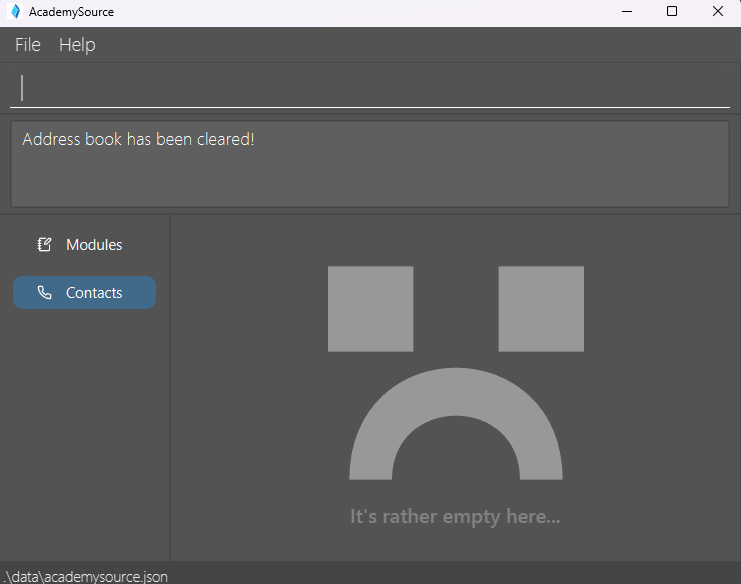
Format: clear
Exiting AcademySource : exit 🔝
Exits AcademySource.
Format: exit
Saving the data 🔝
AcademySource data are saved in the hard disk automatically after any command that changes the data. There is no need to save manually.
Editing the data file 🔝
AcademySource data are saved automatically as a JSON file [JAR file location]/data/academysource.json. Advanced users are welcome to update data directly by editing that data file.
Caution:
If your changes to the data file makes its format invalid, AcademySource will discard all data and start with an empty data file at the next run. Hence, it is recommended to take a backup of the file before editing it.Furthermore, certain edits can cause AcademySource to behave in unexpected ways (e.g., if a value entered is outside of the acceptable range). Therefore, edit the data file only if you are confident that you can update it correctly.
FAQ 🔝
Q: How do I transfer my data to another Computer?
A: Install the app in the other computer and overwrite the empty data file it creates with the file that contains the data of your previous AcademySource home folder.
Known issues 🔝
-
When using multiple screens, if you move the application to a secondary screen, and later switch to using only the primary screen, the GUI will open off-screen. The remedy is to delete the
preferences.jsonfile created by the application before running the application again. -
If you minimize the Help Window and then run the
helpcommand (or use theHelpmenu, or the keyboard shortcutF1) again, the original Help Window will remain minimized, and no new Help Window will appear. The remedy is to manually restore the minimized Help Window. -
All commands are functional in Module Page, despite not able to see the details of contacts. Use
listorfindcommand to display the desired contacts before editing the contact list. - Using complex characters like emojis or script (Arabic and Hebrew) causes the command box input to behave in weird ways. Avoid entering these characters in the command box.
- On the modules page commands can still be entered and work, but the contact list is not visible. Thus, avoid entering commands on the module page to prevent inadvertent actions.
- If you are using OS Debian GNU/Linux 12 (bookworm) x86_64 with Gnome, you will realise you may be able to shrink the window size below the minimum dimension of 740x600. We currently have no workaround for this. If you are using this OS, please keep the window above the minimum dimension to prevent JavaFX rendering issues.
Command summary 🔝
| Action | Format, Examples |
|---|---|
| Add |
add n/NAME p/PHONE_NUMBER e/EMAIL r/ROLE [t/TELEGRAM] m/MODULE … e.g., add n/James Ho p/22224444 e/jamesho@example.com r/TA t/@JamesLovesCS m/CS2103T
|
| Clear | clear |
| Delete |
delete INDEX… e.g., delete 1 delete 2 3
|
| Edit |
edit INDEX [n/NAME] [p/PHONE_NUMBER] [e/EMAIL] [m/MODULE]…e.g., edit 2 n/James Lee e/jameslee@example.com
|
| Find |
find [n/NAME_KEYWORDS] [p/PHONE_KEYWORDS] [mm/MODULE_KEYWORDS] [f/FAVOURITE_STATUS] [r/ROLE] [t/TELEGRAM_KEYWORDS] [e/EMAIL_KEYWORDS] e.g., find n/James p/98765432 m/CS2106 f/y t/@JamesLovesCS r/PROF e/james@gmail.com
|
| Favourite |
fav INDEX e.g., fav 1
|
| List | list |
| Help | help |
| Exit | exit |
Glossary 🔝
| Term | Definition |
|---|---|
| CLI | Command Line Interface; a way to interact with the application using text-based commands. |
| Index | A positive integer that refers to a contact’s position in the displayed list. |
| JDK | Java Development Kit; a software development environment required to run and develop Java applications like AcademySource. Version 17 or above is needed. |
| Parameters | Values supplied by the user in commands (e.g., name, phone, module) that determine the action taken by AcademySource. Often prefixed with identifiers like n/, p/, m/. |
| GUI | A GUI (Graphical User Interface) is a visual interface that lets users interact with software using elements like windows, buttons, and menus. |
| Field | A specific piece of information in a contact entry, such as name, phone number, email, role, or module. |
| URL | A URL (Uniform Resource Locator) is the address used to access a resource on the internet. |